
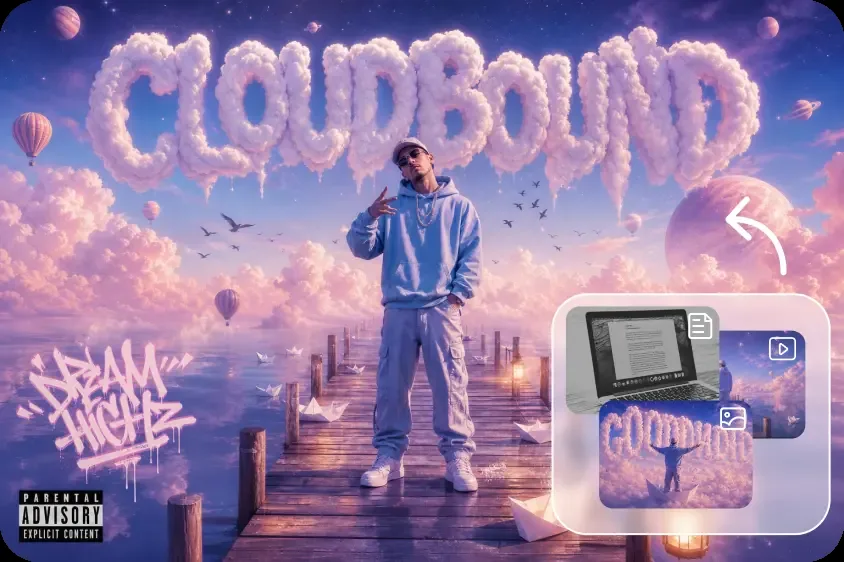
Focusing on visual storytelling makes weddings, birthdays, engagements, and anniversaries more memorable. Event themes and key dates can be introduced through personalized videos and generate excitement until event festivities start. Invitations are made dynamic through animated flowers, cinematic reveals, and imaginative backgrounds.
These images also support photographs, print materials, and actual event video. Dreamina AI brings image generation, video creation, and photo editing together in one creative platform. The workflow of prompts makes it simple to turn ideas and reference photos into scenes that move.
By using a consistent style and attention to detail, event videos can capture the essence of a celebration in various mediums.
Decide What Kind of Celebration Moment You Want to Create
Firstly, you need to determine the time your video will be helpful. Pre-Event animated invitations, countdown clips, and save-the-date announcements tease the theme of the event. When venue equipment allows, projected backgrounds, introductions, and themed transitions set the tone at the event.
Personalised thank-you videos and animated recaps later, the image story is continued. The length, mood, aspect ratio, and visual complexity are dictated by a clear purpose. Whether you are in the conception, planning, production, or post-production phase, Dreamina AI’s AI Video generator can help you translate these various stages into moving visuals based on a defined creative brief.
Prioritizing the planned use also makes it possible to avoid undesirable effects and inappropriate compositions.
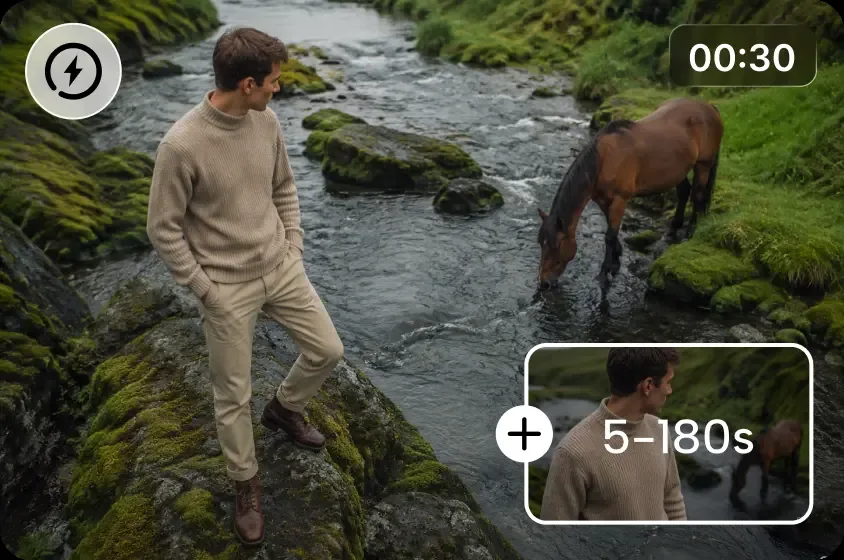
Build a Visual Theme That Connects Every Element
A consistent visual style ties the individual clips together and makes it look like they are not a random collection. Pick colors that work well with the decorations, clothes, invitations, and general ambiance. Ivory, muted gold, soft pink, and floral details could be used in romantic celebrations.
Bright colors, fun animation, and lots of movement can be good for birthday parties. Using Dreamina AI’s Seedream image-generation features, users can visualize concepts prior to video production. Convert good ideas into action in a provided Seedance process.
Always describe repetitive flowers, ribbons, architecture, lighting, and camera movement. Recalling images can help to direct supported workflows towards familiar topics and harmonized visual styling.
Spark Wow Moments for Weddings and Parties With an AI Video Generator
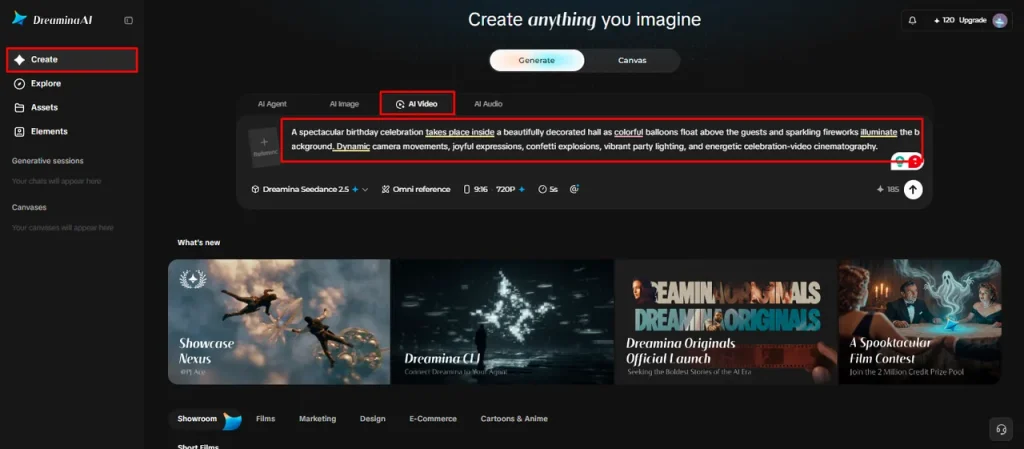
Step 1: Sign In and Describe Your Celebration
- Sign up or log in to Dreamina to start turning your celebration ideas into video.
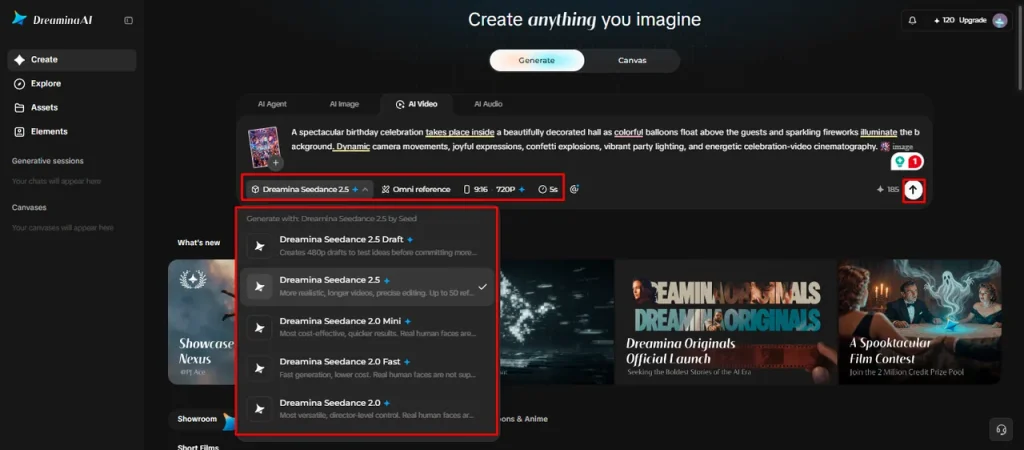
- Open the “Create” tab from the left menu and choose the “AI video” option.
- Write a detailed text prompt about the venue, decorations, theme, and concept of your event.
Step 2: Choose a Model and Style the Scene
- Pick a model from the options displayed at the bottom of the dialogue box.
- Models such as Dreamina Seedance 2.5, Dreamina Seedance 2.0, Dreamina Seedance 2.0 Fast, Dreamina Seedance 2.0 Mini, and Dreamina Seedance 1.0 are available.
- Click “Omni reference” and upload several photos of the couple or guests for accurate results.
- Set your custom aspect ratio and resolution using the “Aspect ratio” and “Resolution” tabs.
- Once everything looks right, click the “Generate” tab to create your party video.
Step 3: Polish the Moment and Save the Memory
- If the mood feels off, try “Edit prompt” or “Regenerate” to improve the results.
- You can also adjust the finished clip with the “Edit video” option for a better look.
- Choose “Edit segment” to change only one scene, such as the first dance.
- Use “Extend video” for a longer toast, or apply “Creative upscale” to boost video quality.
- Dreamina gives you complete freedom to shape the celebration clip the way you like.
- Finally, click the “Download” tab at the top right to save the video on your device.
Five Creative Ways to Add a Wow Moment to an Event
- Animated wedding invitation: Add subtly lit landscapes, sliding flowers, and pretty transitions. Include invitation wording while editing to make it more accurate and easier to read.
- Birthday countdown animation: Bring balloons, confetti, and colorful decorations to life with a fun opening animation. Move in sync with the party’s theme.
- Engagement announcement: Make an announcement with a cinematic reveal with romantic lighting and carefully composed scenery. Do not make up any information about the couple – keep it personal.
- Anniversary Tribute: Link significant colors, flowers, and symbolic items with a visual continuum. Conduct a closing message during editing, from a heartfelt perspective.
- Party entrance backdrop: Create themed animations for venue screens or digital displays. Check with the venue beforehand regarding dimensions, playability, and requirements.
Make Event Videos Feel Personal Rather Than Mass-Produced
The first step to personalization is to have elements that really reflect the occasion. Firm up the theme, colors that you have decided upon, location, and ambiance around the concept.
Don’t ask for something just pretty; ask for soft candlelight, slow camera movement, and delicate florals. Authorized reference photographs can support recognisable subjects, if they are provided. Don’t make up names, dates, locations, etc. that might lead to false announcements.
Use added wording during editing where there is doubt about the reliability of the lettering produced. With Dreamina AI’s image and video capabilities, users can explore their creativity while ensuring the output remains relevant. Keep any overpowering impacts to a minimum, making certain the visuals complement the celebration and never detract from the message.
Adapt Generated Videos for Different Event Displays
The destination will tell viewers what they will see in a video. Vertical compositions work well for Reels, Stories, and mobile invitations, especially with key things staying within safe framing zones.
Landscape (horizontal) compositions work well for projectors, televisions, and landscape digital signage. Gradually moving backgrounds and harmonious ends make the backgrounds smoother if they are used in a loop.
Digital announcements should allow names, dates, and venue information to be included at the edit stage. Check aspect ratio, resolution, file compatibility, and playback requirements before sharing. Before those guests arrive, it’s possible to test the export on the screen you’re planning to use and catch any potential cropping, readability, or scaling issues.
Review Creative Quality, Accuracy, and Event-Related Rights
Review the entire video before sending out invitations or playing the animation in public. Look for changes in face, hands, decorations, or symbolic objects that don’t match between shots.
Check all names, dates, locations, and activities with the original brief. Photographs, music, logos, and reference clips are only used when appropriate permissions are in place. Get permission to create or post images that resemble real people.
Also consider if the music you have chosen is appropriate for the venue and audience. On this actual playback device, preview the downloaded file (not only on the generation screen). These checks are to ensure accuracy, privacy, and to preserve the spirit of the celebration.
Conclusion
AI-generated videos offer a familiar visual identity that can tie together invitations, venue displays, announcements, and post-event tributes. Dreamina AI is all about prompt-based video creation, Seedream image generation, Seedance workflows, and facilitated video editing capabilities.
Choose one significant time, pick an overall style, and pick settings for the final product. Check the personal information, the quality of the image, and the conditions of use before sharing. When generated visuals are present, with a well-directed creative approach, they can create a personality without detracting from the true meaning of the celebration.
